How to add a file upload question
Use a File upload question to collect attachments alongside answers, such as a résumé for an application. Set it up before sharing the form, so you can tell people what to prepare.
- Add the question.Open your form in Google Forms. Click Add question and enter a clear request, such as “Upload your résumé.”2
- Choose File upload.Open the question-type menu beside the question and select File upload.2
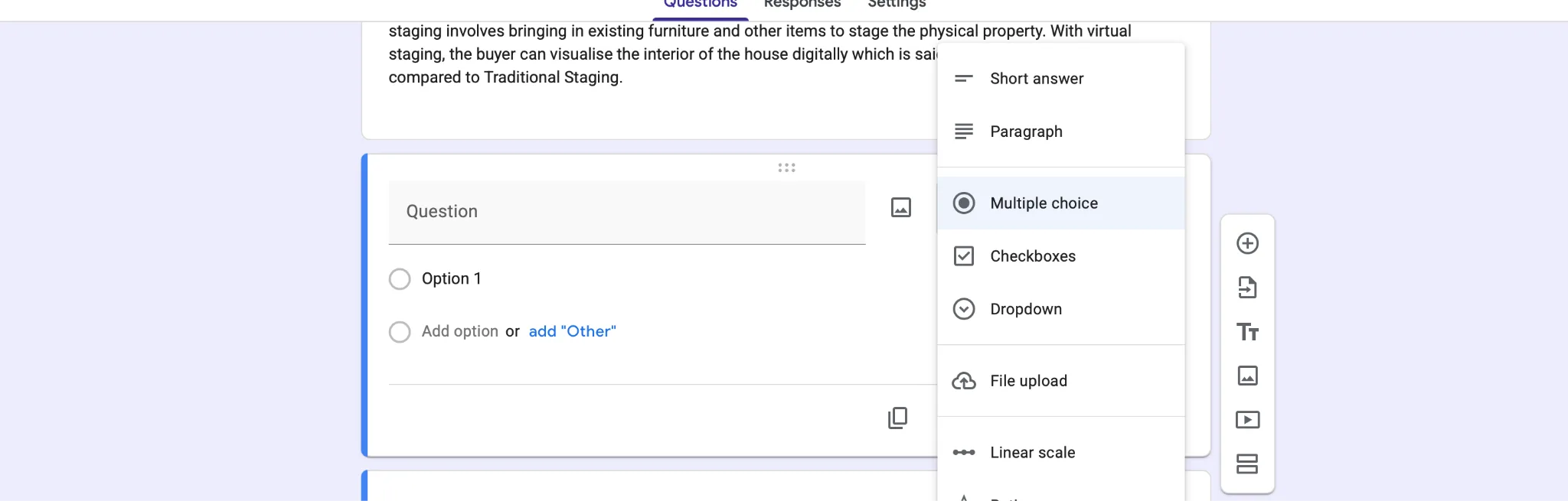
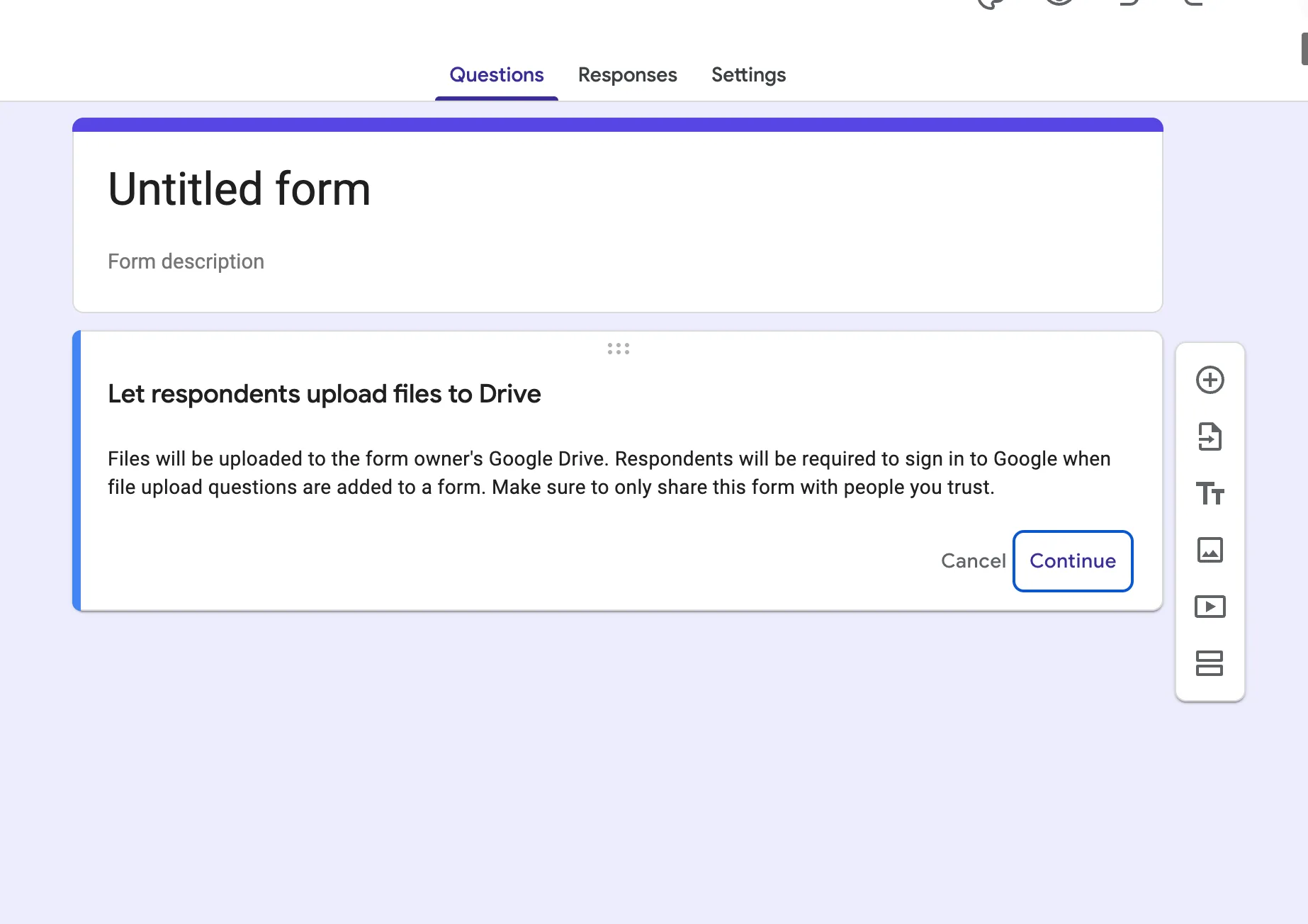
File upload sits in the question-type menu with the other question types. - Read the notice, then click Continue.The notice explains that files go to the form owner’s Google Drive and respondents must sign in to Google. It also advises sharing the form only with people you trust.23
The notice is worth reading, because it states the two rules that cause most of the problems in this guide:
“Files will be uploaded to the form owner’s Google Drive. Respondents will be required to sign in to Google when file upload questions are added to a form. Make sure to only share this form with people you trust.”
Google Forms, “Let respondents upload files to Drive” notice3
So, as soon as you click Continue, two things change for the whole form. Uploaded files go into your Drive, and everyone who opens the form has to sign in to a Google account.
File upload settings: file types, number of files, size
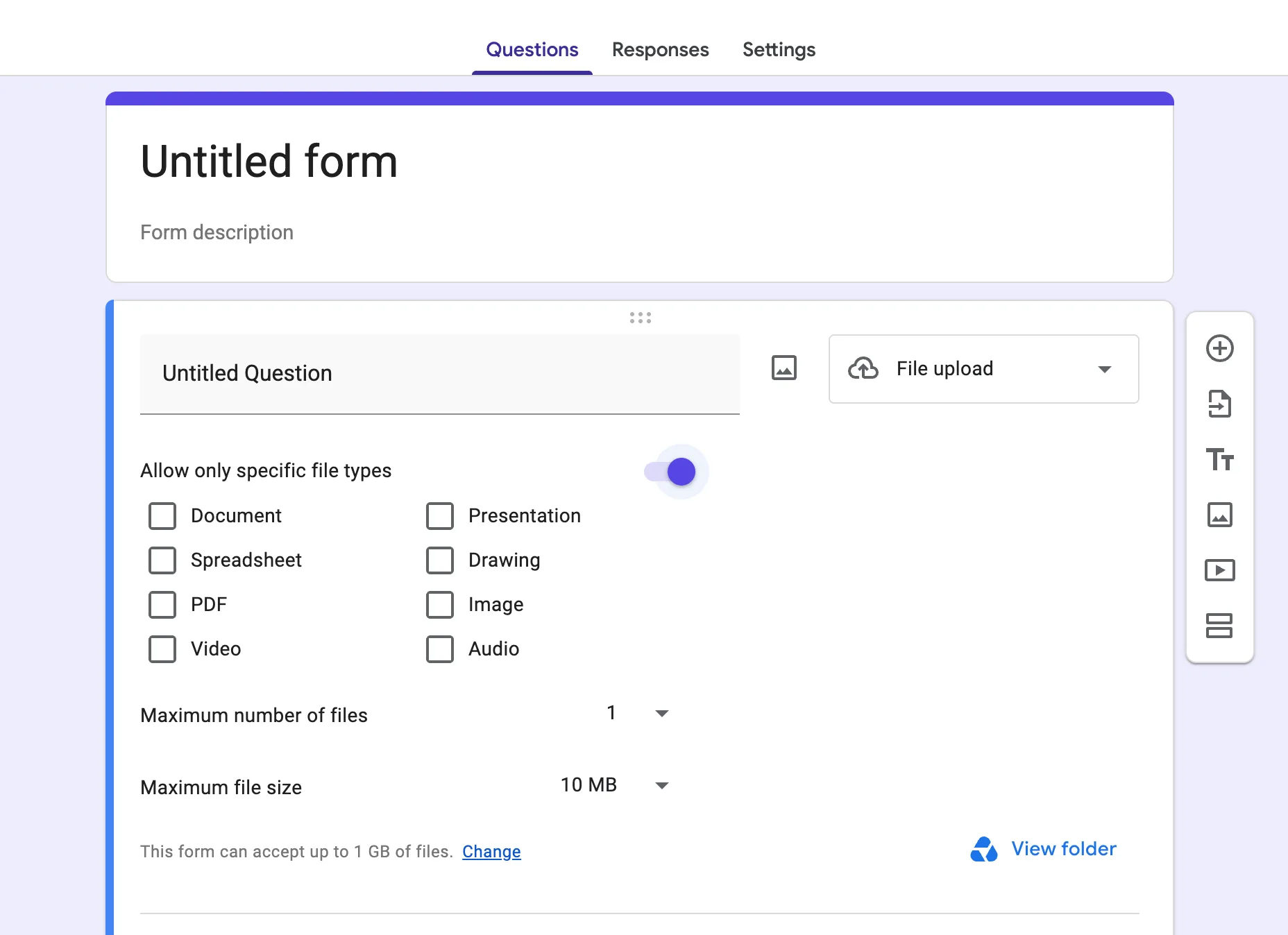
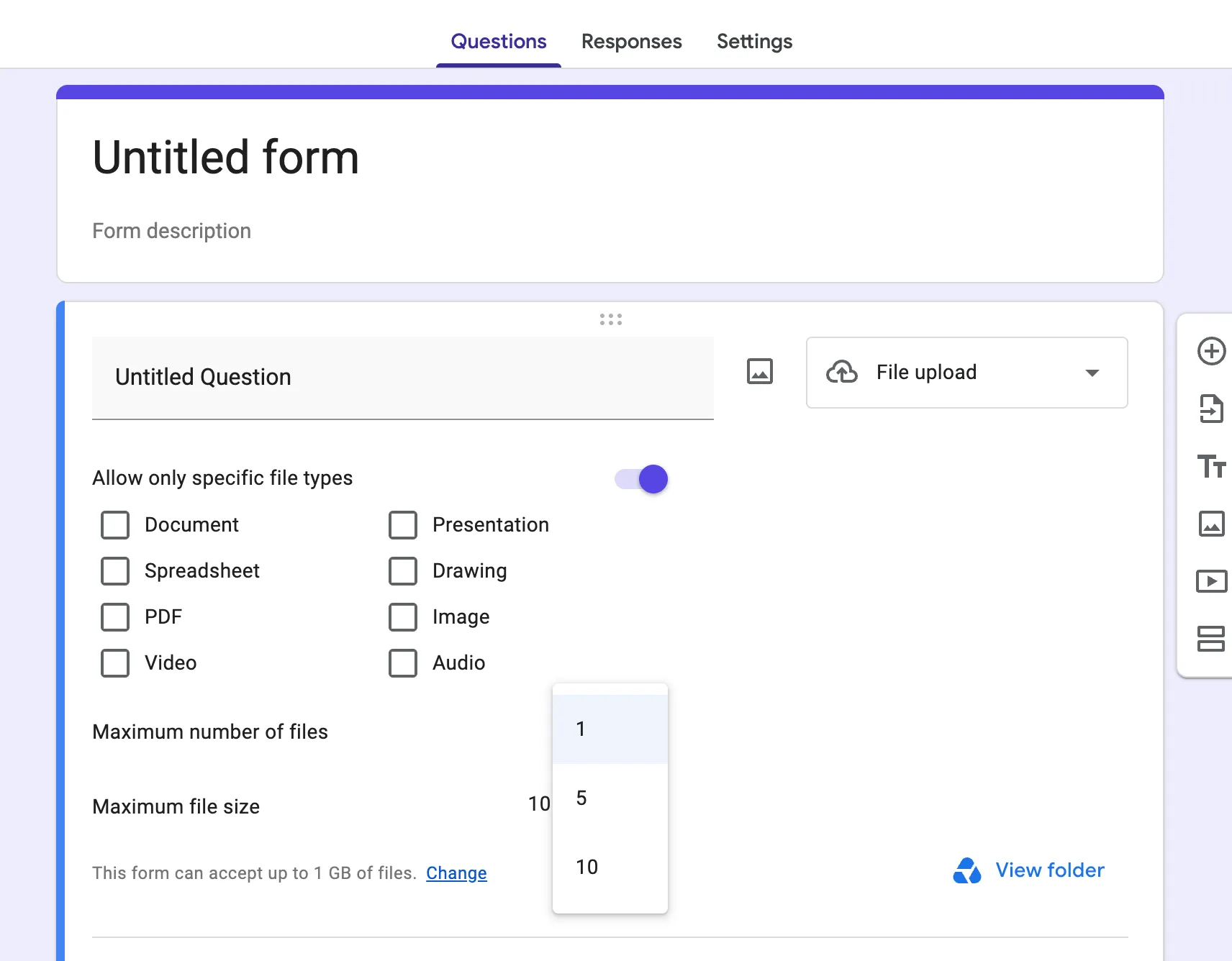
Review four settings: allowed types, files per question, size per file, and total uploads to the form. Set them for the files you need: one PDF has different requirements from several videos.2
Allowed file types
Turn on Allow only specific file types to select the categories you want: Document, Presentation, Spreadsheet, Drawing, PDF, Image, Video and Audio. These are eight file-type categories, not eight individual extensions. For a PDF-only request, select PDF and say so in the question.3
| Setting | Options | Default |
|---|---|---|
| Files per upload question | 1, 5 or 10 | 1 file |
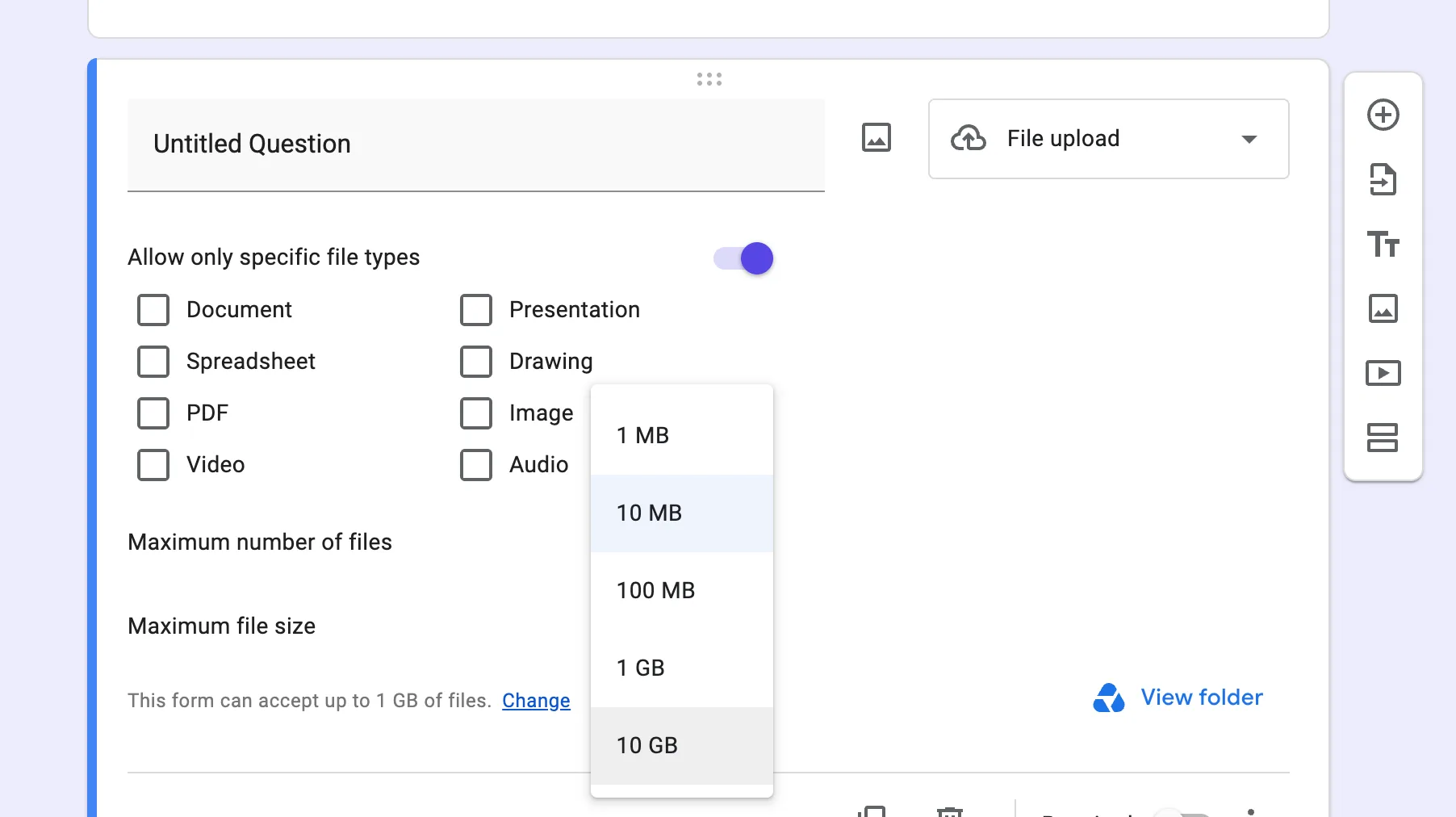
| Maximum size per file | 1 MB, 10 MB, 100 MB, 1 GB or 10 GB | 10 MB |
| Total uploads for the form | Raise using Change | 1 GB |
Source: the Google Forms settings and menus captured in October 2026.3
The form total is a separate limit
The Maximum file size menu sets the allowance for each individual file. The line below it sets the allowance for all uploads to the form. Use Change beside the form total to raise that setting. Google’s 2017 announcement described a ceiling of 1 TB for total uploads per form; that figure comes from the post, rather than a current capture of the Change menu.37
Allowing 10 GB per file does not raise the form’s default 1 GB upload total. To request a 10 GB file, raise the form total as well. For a collection with many respondents, plan for their combined uploads, not just the largest single file.3
Where uploaded files go, and what uses storage
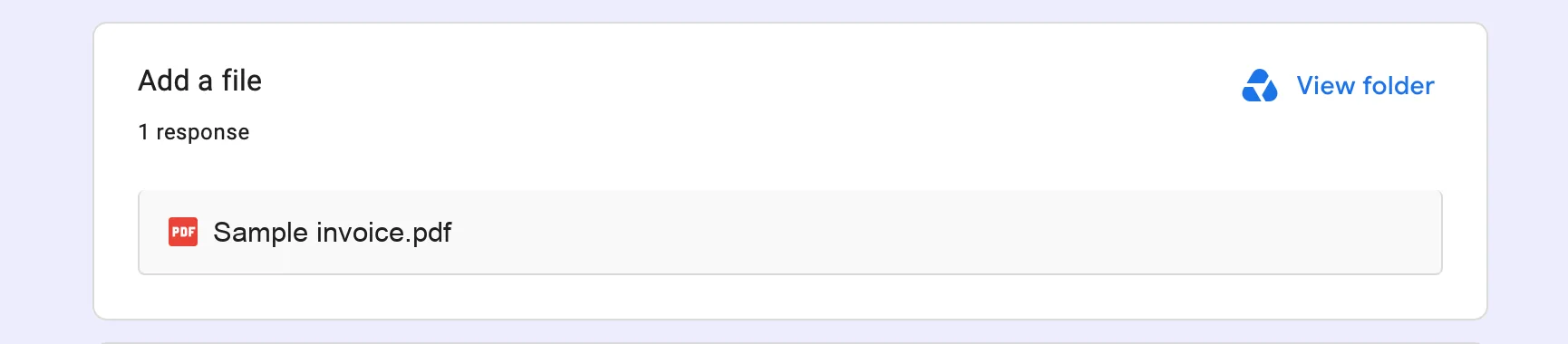
Uploaded files are stored in the form owner’s Google Drive, in a new folder that Forms creates for the form.1 Each File upload question gets its own subfolder.2 To open the folder, click Responses, then Summary, then View folder.2
Two storage points are easy to get wrong:
- The form’s 1 GB upload total is a setting on the form. It is a separate thing from the 1 GB data limit Google sets for each form, which counts the form and its response data but not uploaded files.6
- Deleting responses does not delete the files. If you clear responses in Forms, the uploaded files stay in your Drive folder.6 Delete them from Drive if you no longer need them.
Why Google Forms file upload requires sign-in
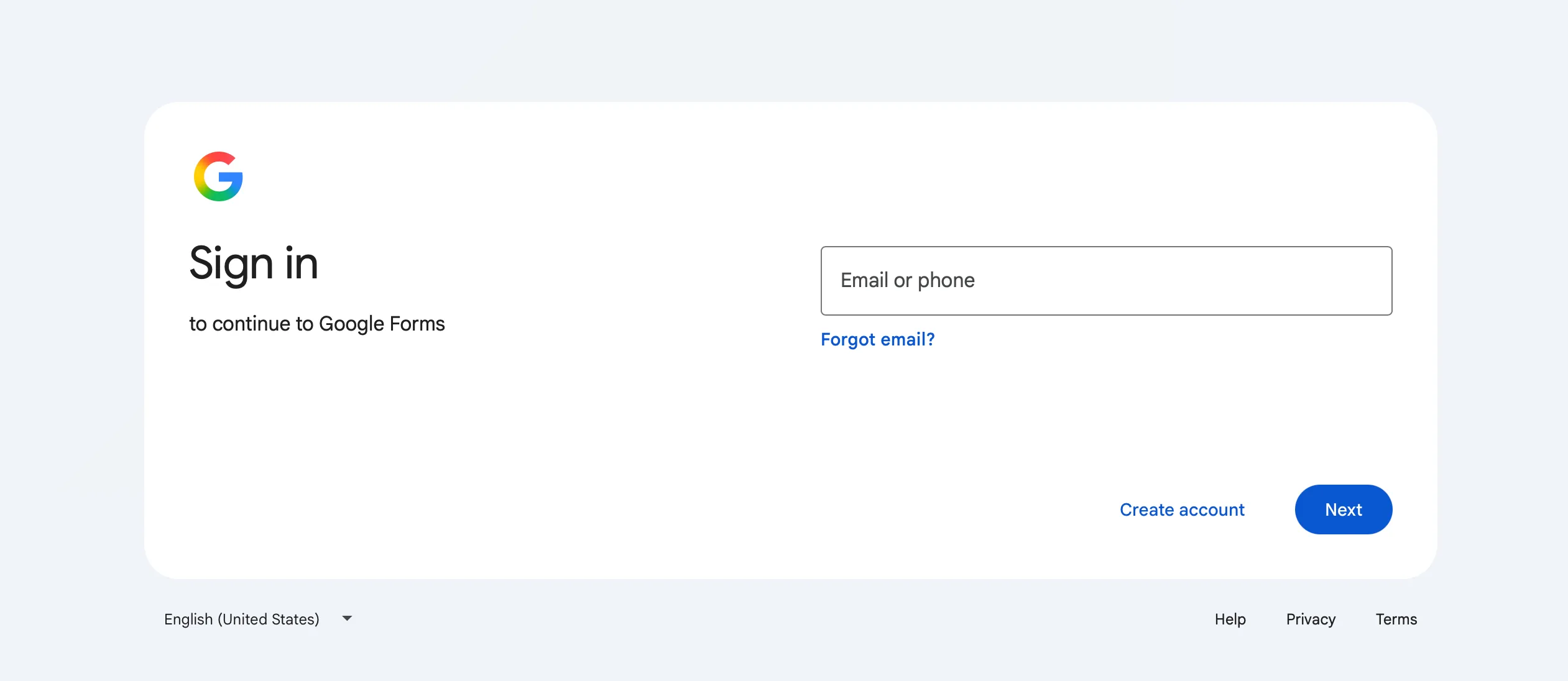
Google Forms requires a Google account for file uploads, even when anyone with the link can respond. Google’s Help pages state the rule plainly: to answer a File upload question, respondents need to sign in to a Google Account.14 The notice in the editor says the same.3
Any Google Account works. It doesn’t have to be a Gmail address; a work or school Google account counts too.18
Google’s Help pages don’t say why. A volunteer Product Expert on Google’s help forum (not a Google employee) gave one reason: it is “a precaution to keep your Drive space from being filled by anonymous users.”11 That fits how the feature works: the files go into the owner’s Drive.
In practice, the effect is simple. With a File upload question on the form, nobody can upload without signing in to Google. That also answers the question of anonymous uploads: Google Forms has no way to upload a file without signing in to a Google account. If some of the people you need files from don’t have a Google account, or won’t sign in, see collecting files from people without a Google account.
If the form came from your employer or school, sign in with that work or school Google account. Forms made with work or school accounts are open only to people in the organisation unless the creator changes the setting.8 If you still can’t open or answer the form, contact the form owner or your administrator.
Why file upload is greyed out or disabled, or respondents can’t upload
First identify where the problem appears: a File upload option that is disabled in the editor, or a respondent unable to attach a file. Use the relevant checks below.
The File upload option is greyed out in the editor
Google lists two cases where you can’t use the File upload question type:1
- The form is stored in a shared drive. The fix usually given on Google’s help forum is to move the form to My Drive, then add the question.12 If your team needs to reach the form from the shared drive, Clarkson University’s IT guide describes a workaround: keep the form in a folder in your own My Drive, then add a shortcut to that folder in the shared drive. The form and its uploaded files stay in your Drive, so you manage who can open them.16
- Your administrator turned on Data Loss Prevention (DLP). This is an organisation-wide security setting. Don’t try to work around it; ask your administrator.
To see what this looks like, Stony Brook University’s IT help page has screenshots of the greyed-out File upload option in a form stored in a shared drive.14
A respondent can’t upload a file
- Check the file requirements.The owner can restrict the number, type and size of files. Compare your files with the question’s instructions. Contact the owner if the required file does not fit those limits.4
- Check the account and access.Sign in to a Google account. If the form is restricted, use the account with permission to respond or ask the owner for access.84
- Check organisation controls.For work or school users, external-response settings can affect access in either organisation. Administrators manage them under Drive and Docs › Form responses. Ask the administrator to review the applicable settings.9
- Read any DLP warning.Google’s 2022 update allows existing Drive DLP policies to apply to files submitted to external forms in supported Enterprise and Education editions. A rule may warn or block the respondent. Ask your administrator how to proceed.10
- Check where the source file is stored.Google says respondents cannot upload a file from a shared drive. If that is where your file lives, tell the owner or administrator and ask for an approved way to supply it.4
The device is unlikely to be the cause. Respondents can upload from a phone browser as well as a computer.15
Older forum answers say file upload works only for people inside your organisation. That changed in 2017: people outside your organisation can upload, as long as both organisations allow cross-domain sharing in Google Drive.7
How to make a Google Form public, and what that does to upload questions
A form has to be published before anyone can answer it. If it is unpublished, people with the link can’t open it.5
- Open the form. At the top right, click Publish.5
- Click Manage to choose who can respond.
- Under General access, choose Anyone with the link.
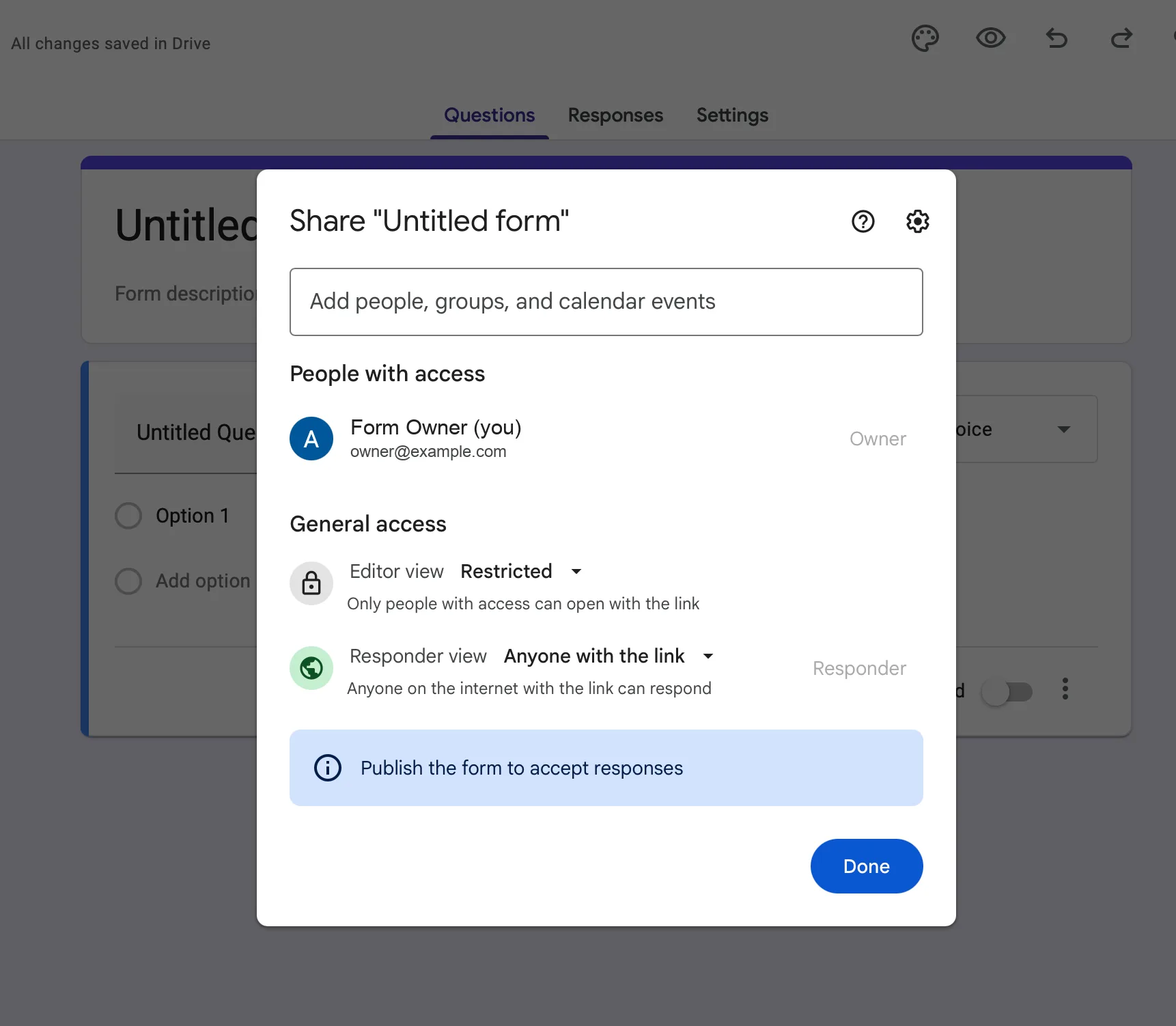
Under General access, set the responder view to Anyone with the link. The form still has to be published before it accepts responses. - Click Done, then Publish. The top right now shows “Published”.
- To share it, click Published › Copy responder link.
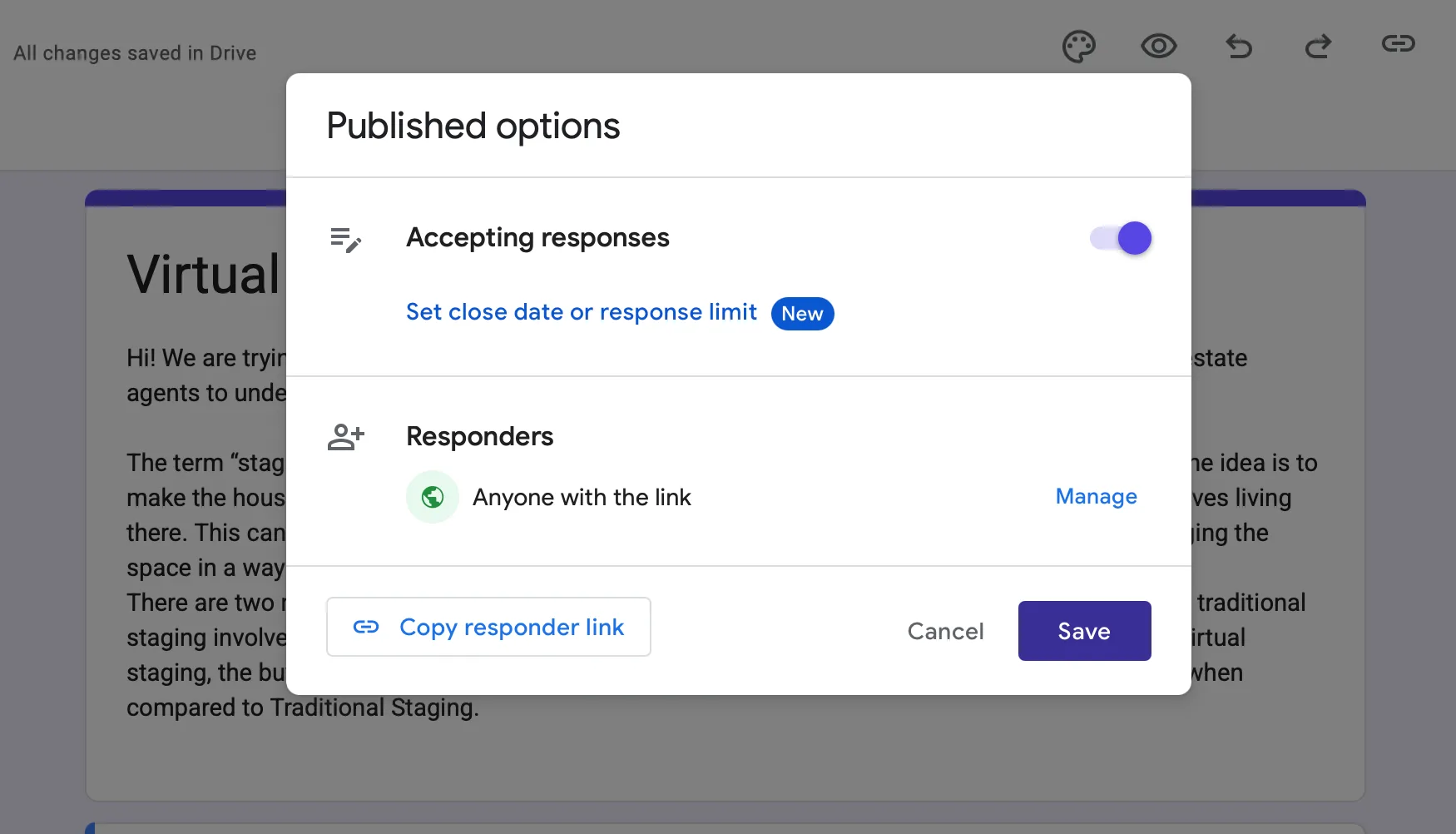
Once the form is published, Published shows who can respond and the Copy responder link button. - Open the link in a private window where you are signed out, to see the form the way a stranger does.
On a work or school account, a form is open only to your organisation until you change this setting.8 Your administrator may also stop forms from taking responses from outside the organisation.9
“Anyone with the link” controls who can open the form. It does not remove the sign-in rule. If the form has a File upload question, every respondent still has to sign in to a Google account.15
A form with a File upload question also can’t be embedded in an email. Send the link instead.5
Collecting files from people without a Google account
Google Forms can’t take a file from someone who isn’t signed in to Google. If that rules out some of the people you need files from, these are the options:
If you need answers to questions as well as files, keep the form for the questions and send the upload link alongside it.
Google Forms file upload FAQ
Can you upload a PDF to Google Forms, and why might it fail?
Yes, through a File upload question. If the owner turned on “Allow only specific file types”, PDF must be one of the ticked types. An upload can also fail if the PDF is larger than the question’s maximum file size, or if you aren’t signed in to a Google account.
Can people upload files to a Google Form without a Google account?
No. To answer a File upload question, respondents must sign in to a Google Account, even when the form is open to anyone with the link. To collect files from people without one, use a separate upload link or another tool.
What is the maximum file size in Google Forms?
10 GB per file, if the owner chooses it. The options are 1 MB, 10 MB, 100 MB, 1 GB and 10 GB, and the default is 10 MB. The whole form also has a total limit of 1 GB by default, which the owner can raise.
How many files can a respondent upload?
Up to 10 per File upload question. The owner chooses 1, 5 or 10, and the default is 1.
Why is file upload greyed out, and can a form in a shared drive use it?
A form stored in a shared drive can’t use File upload questions; move the form to My Drive. File upload is also unavailable when your administrator has turned on Data Loss Prevention. In that case, contact your administrator.
Google Forms vs a BeamUp upload link
They solve different problems. Forms collects answers and files from people who use Google. An upload link collects files only, from anyone.
| Google Forms | BeamUp upload link | |
|---|---|---|
| Sender signs in | Yes, to a Google account | No |
| Where files go | A new folder in the owner’s Drive | A Drive folder you choose, or an S3 bucket |
| Largest file | 10 GB per file, within the form’s total (1 GB by default) | No BeamUp-imposed cap; Google Drive or S3 limits apply |
| Files per upload | 1, 5 or 10 per question | Multiple files; each file uses one upload credit from your plan |
| File types | All, or chosen categories | Any file type |
| Collects form answers too | Yes | No, files only |
| Shows the owner who uploaded | Only if the owner turns on Collect email addresses; respondents must then agree to record their email to continue515 | No; senders aren’t asked for a name or email |
| Upload from a phone | Yes15 | Not yet; mobile coming soon. Desktop browsers only for now |
Need files from people who won’t sign in to Google?
Connect Google Drive, paste a folder link, and share an upload link. Files land in that folder.
Create an upload link5 free uploads. No card needed. See plans
References
- Google Docs Editors Help: Choose a type of question for your form
- Google Workspace Learning Center: Tips to customize your forms
- Google Forms editor: the “Let respondents upload files to Drive” notice, the File upload question settings and menus, captured October 2026
- Google Docs Editors Help: Fix common errors while you respond to a Google Form
- Google Docs Editors Help: Publish & share your form with responders
- Google Docs Editors Help: View & manage form responses
- Google Workspace Updates (July 2017): Smarter Google Forms to save you time
- Google Docs Editors Help: Get permission to open a Google Form
- Google Workspace Updates (June 2025): Adding new admin settings to control Google Form responses
- Google Workspace Updates (June 2022): Data Loss Prevention for Drive helps protect sensitive data when users upload files to external Google Forms
- Google Docs Editors Community: “How do I allow users to post attachments to a google form?” (reply by a volunteer Product Expert)
- Google Docs Editors Community: “I cannot enable the ‘file upload’ option in Google Forms”
- Formfacade: How to upload files to Google Forms without a sign in?
- Stony Brook University, Division of Information Technology: Google Forms with File Upload Questions and Shared Drives
- BeamUp’s own test of a Google Form with a File upload question, October 2026: a signed-in upload from a phone browser, and the owner’s response view with Collect email addresses off and on
- Clarkson University: Forms - Utilize ‘File Upload’ on a Shared Drive