File requests for Google Drive and Amazon S3
Let anyone send files straight to your Google Drive or S3
Create an upload link and share it with clients, vendors, partners, or applicants. They upload from their browser without creating an account or signing in. The files land in the folder or bucket you chose.
Create an account, connect your storage, then create and share your link.
A file request in three steps
You set up the link once. The person sending files only sees an upload page.
Connect your storage
Choose Google Drive or Amazon S3 and authorize the destination your team controls.
Create an upload link
Name the link and set where its files go. For Google Drive, paste the destination folder’s link or ID.
The sender uploads
They open your link in a browser on a computer or phone, and upload. No account, no sign-in, no access to your folder.
Files arrive in the destination you chose. Your own tools take over from there.
Create an upload linkFiles land where you already work
Choose the destination for each upload link. Google Drive and Amazon S3 are both available.

Into a Drive folder
Google Drive doesn’t offer an open, upload-only link for people outside your account. A BeamUp link adds one: connect your Google account, paste the link of any Drive folder you already use, and share the upload link.
How Google Drive file requests workInto an S3 path
Connect an S3 bucket and choose the path for incoming files. Senders never need AWS credentials, and you manage the files through your existing S3 workflow.
Use cases
One link for everyone who sends you files
Anyone who needs files from people outside their Google Workspace or AWS account can use a BeamUp link.
Data teams
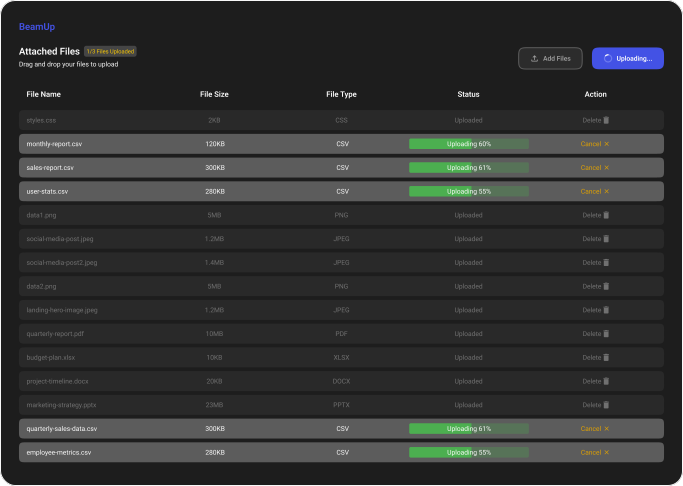
Receive recurring CSV exports and reports from partners and customers in a fixed folder or S3 path.
e.g. a weekly data drop from each partner
See the recurring exampleClient work
Collect documents and assets from clients without asking them to join your Drive or learn a new tool.
e.g. onboarding documents, project files
Vendors and partners
Give each vendor a link for the files they send you, so nothing gets lost in email threads.
e.g. invoices, delivery reports
Applications and submissions
Accept files from people who don’t have, or don’t want to use, a Google account.
e.g. portfolios, entries, assignments
Every use starts the same way. Create an upload link
Same link every week, same folder every time
Say a partner sends your team a fresh CSV every Friday. Share one upload link and point it at the folder or S3 path where your team expects those files. Each week, the sender uses the same page, and your team works with the file in its own storage.
BeamUp collects and delivers the file. Your own tools handle any import, validation, or analysis after it arrives.
Why not just use a form or a shared folder?
Each option works for some situations. Here is where each one stops.
- Google Forms
- File-upload questions require every respondent to sign in to a Google account.
- Shared folder
- Senders need access to the folder, and usually a Google account, to add files.
- Fine for one attachment. Size limits apply, and repeated files get scattered across threads.
- One-off transfer
- Works for a single handoff, but you need a new request or link each time.
- BeamUp link
- A dedicated upload page with no sign-in, delivering to the folder or bucket you chose.
Using Google Forms? Read the Google Forms file upload guide
Using Google Drive? Compare every way to request files into Drive
Your storage stays yours
- Senders see an upload page onlyThey can’t browse your Drive folder, bucket, or anything else in your storage.
- You approve a narrow connectionOn Google Drive, BeamUp asks only for access to the files it adds, not the rest of your Drive. You can revoke the connection at any time.
- Files go straight to your storageUploads travel from the sender’s browser directly to your Drive folder or S3 bucket, not through BeamUp’s servers. BeamUp stores your link settings, your storage connection, and an upload count for billing, in a database encrypted at rest with AES-256.
Plans from $9.99/month
Try BeamUp with 5 free uploads. No card needed, just sign in and send a test file. When you need more, choose a monthly or yearly plan.
See plansQuestions before you share a link
What is BeamUp?
BeamUp (usebeamup.com) is a file request tool for Google Drive and Amazon S3. You create an upload link and share it. People upload from their browser without an account, and the files go straight to the folder or bucket you chose.
Does the person uploading need an account?
No. You sign in to set up the link. The sender opens the upload page and uploads without a BeamUp account, a Google account, or AWS credentials.
Is BeamUp a Google Forms alternative for file uploads?
For collecting files, yes. Google Forms requires respondents to sign in to a Google account before they can upload. A BeamUp link doesn’t, and files go to the Drive folder you choose. If you also need form questions, keep your form and send the files through BeamUp.
Can I use the same link more than once?
Yes. A link stays open until you delete it, so one link can take a file every week, and each upload goes to the same destination. Uploads count toward your plan’s upload allowance.
Can someone upload from a phone?
Yes. The upload page works in phone browsers as well as on laptop and desktop computers.
Does BeamUp read or transform my files?
BeamUp is for receiving files in your storage. It does not import rows, map columns, or validate data for you.
Send your first file request
Connect Google Drive or S3, create an upload link, and share it with whoever needs to send you files.
Create an upload link